ByMax Lee
How to Exit Car Wash Mode When the Screen Freezes in Tesla Model 3
Car washes are routine for most car owners, but for Tesla Model 3 drivers, there’s an extra step—using Car Wash Mode. This special mode protects your car’s sensors and prevents accidental actions during a wash. But what if your Tesla’s touchscreen freezes while in Car Wash Mode and refuses to exit? This can be both confusing and stressful, especially if you’re in a busy car wash line.
Let’s break down exactly what Car Wash Mode does, why the screen might freeze, and step-by-step solutions you can use if you ever get stuck. With clear instructions, practical advice, and tips even many experienced owners miss, you’ll know how to handle this situation calmly and confidently.
What Is Car Wash Mode And Why Does It Matter?
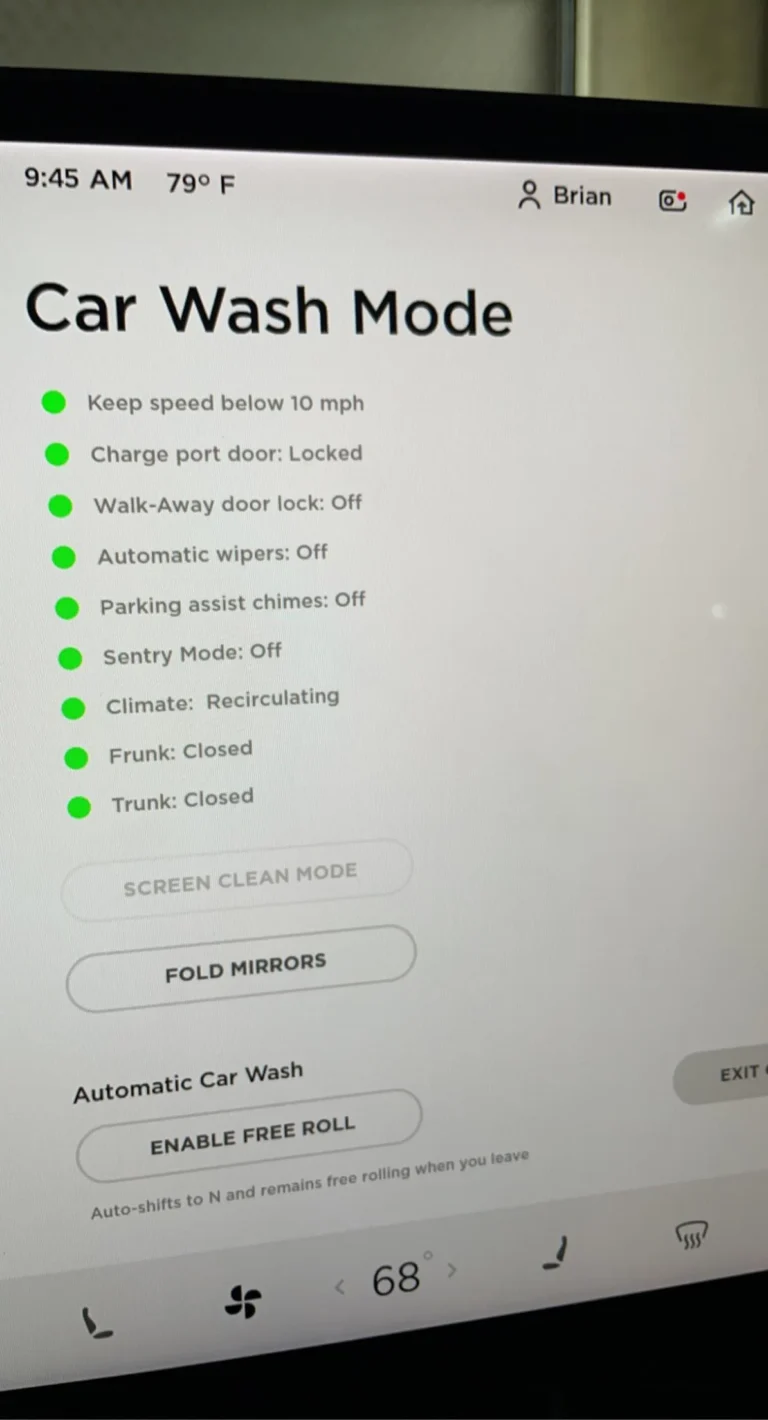
Car Wash Mode is a special feature in Tesla vehicles, designed to get your car through an automatic wash safely. When activated, it:
- Folds the mirrors
- Disables wipers, parking sensors, and the charge port
- Locks windows and activates free roll (neutral mode)
All of these prevent damage during the wash. However, since it controls so many systems, a frozen screen can lock you out of key functions, leaving you unable to shift gears or open doors normally.
Why Does The Tesla Model 3 Screen Freeze In Car Wash Mode?
The touchscreen is central to almost every action in the Model 3. Sometimes, the screen can freeze due to:
- Software bugs – Updates may cause temporary glitches.
- Moisture or temperature – Sudden changes during a wash can impact electronics.
- Low system memory – Running many apps or features can slow the system.
- Physical touch issues – Water on the screen can confuse touch commands.
A frozen screen in Car Wash Mode isn’t common, but when it happens, it can be tricky to resolve without knowing the right steps.
Immediate Steps To Try When The Screen Freezes
If your screen is frozen, stay calm. Your car is still safe, and you can usually regain control with these actions:
1. Soft Reboot The Touchscreen
This is the most common and effective fix.
- Press and hold both scroll wheels on the steering wheel for about 10 seconds.
- The screen will go black, then restart after 30-60 seconds.
- Car Wash Mode often exits automatically after a reboot.
2. Use The Brake And Gear Selector
After the screen reboots, press the brake pedal and shift into Drive or Reverse. This can override Car Wash Mode if the system is responsive.
3. Try Voice Commands
Sometimes, the voice system still works even if the display is frozen.
- Press the voice command button on the right steering wheel.
- Say, “Exit Car Wash Mode.”
- If the system responds, it will process the command.
4. Open The Tesla App
The Tesla mobile app can control many functions.
- Open the app on your phone.
- Tap “Controls” and see if you can unlock doors or shift out of Car Wash Mode.
- The app might let you access features even when the in-car screen is unresponsive.
Advanced Fixes If The Screen Remains Frozen
If the basic steps fail, try these methods. They’re safe and used by experienced owners:
1. Hard Reboot (power Off And On)
- Go to Controls > Safety & Security > Power Off (if the screen is partly working).
- If not, park the car, exit, and close the doors. Wait 2-3 minutes.
- Re-enter the car and press the brake pedal to restart everything.
2. Disconnect And Reconnect Bluetooth
Sometimes, unpairing and repairing your phone helps reset the system, especially if you use the app for controls.
3. Use Manual Door Release
If the doors remain locked, pull the manual door release (located near the window switches). This is a mechanical solution, not electronic.
4. Call Tesla Roadside Assistance
If you cannot resolve the issue, contact Tesla directly. They can sometimes send a remote reset signal or walk you through a fix.
Credit: recharged.com
Common Mistakes To Avoid
Many owners make errors in these situations:
- Repeatedly pressing buttons – This can overwhelm the system.
- Forcing the doors – Use the manual release gently to avoid damage.
- Ignoring updates – Outdated software is more likely to freeze.
Stay patient. Rushing increases the risk of mistakes.
How Car Wash Mode And Screen Issues Compare
To help you understand how Car Wash Mode interacts with system freezes, see this simple comparison:
| Feature | Normal Car Wash Mode | Car Wash Mode with Frozen Screen |
|---|---|---|
| Exit Process | Tap “Exit” on screen | Requires reboot or app |
| Gear Shift | Works instantly | May be delayed |
| Doors/Windows | Controlled by screen | Use manual release |
Notice that the car is still drivable, but you may need backup solutions.
What To Do Next Time To Prevent Freezing
Prevention is always better than emergency fixes. Here’s how you can reduce the chance of your Tesla Model 3 screen freezing in Car Wash Mode:
- Update your software regularly. Tesla releases patches for known bugs.
- Avoid using the screen with wet hands or when water is on the display.
- Minimize running apps or features during a car wash.
- Restart your car (soft reboot) before entering the car wash if you’ve recently noticed slowdowns.
- Keep your phone app connected in case you need a backup.
When To Seek Professional Help
If you find your screen freezing often, or if none of the above solutions work, it may be a sign of deeper issues. In these cases:
- Schedule a service appointment with Tesla through the app.
- Document the issue, noting the time, conditions, and any steps you took.
- Ask for a diagnostic scan to check for hardware problems.
Many owners overlook the power of a proper diagnosis. Persistent freezing can point to hardware that needs repair, not just software.

Credit: www.notateslaapp.com
Real-world Example
A Tesla Model 3 owner reported their screen freezing in Car Wash Mode during a cold morning. They tried the soft reboot, but it did not respond. Using the app, they managed to unlock the doors and shift out of neutral, then performed a hard reboot after parking outside the car wash.
The issue did not return after updating their software.
This example shows the importance of backup options and staying updated.
Key Takeaways
- Car Wash Mode is safe, but a frozen screen can trap you temporarily.
- Always try a soft reboot first, then use the app if available.
- Manual door releases and voice commands can help in emergencies.
- Prevent issues by keeping software updated and using features carefully.
For more details on Tesla’s Car Wash Mode, you can check the official Tesla Support page.
Credit: recharged.com
Frequently Asked Questions
What Does Car Wash Mode Do In Tesla Model 3?
Car Wash Mode prepares your car for an automatic wash. It folds mirrors, disables sensors, locks windows, and prevents accidental gear shifts.
Will A Soft Reboot Erase My Settings Or Data?
No, a soft reboot only restarts the touchscreen system. Your profiles, navigation history, and settings remain safe.
Can I Drive If The Screen Is Frozen In Car Wash Mode?
Yes, you can usually drive using the manual gear selector or the mobile app. Safety features remain active, but navigation and music may not be accessible.
How Long Does A Soft Reboot Take?
A typical soft reboot lasts 30–60 seconds. The screen will go black and then restart. Avoid driving until the display returns.
What If My Tesla Continues To Freeze After Every Car Wash?
Frequent freezing may signal a hardware or deeper software issue. Contact Tesla Service for a full diagnostic check.
With these steps and tips, you’ll never be caught off guard if your Tesla Model 3 screen freezes in Car Wash Mode. Stay calm, use the right tools, and you’ll be on your way in no time.